 ← Back
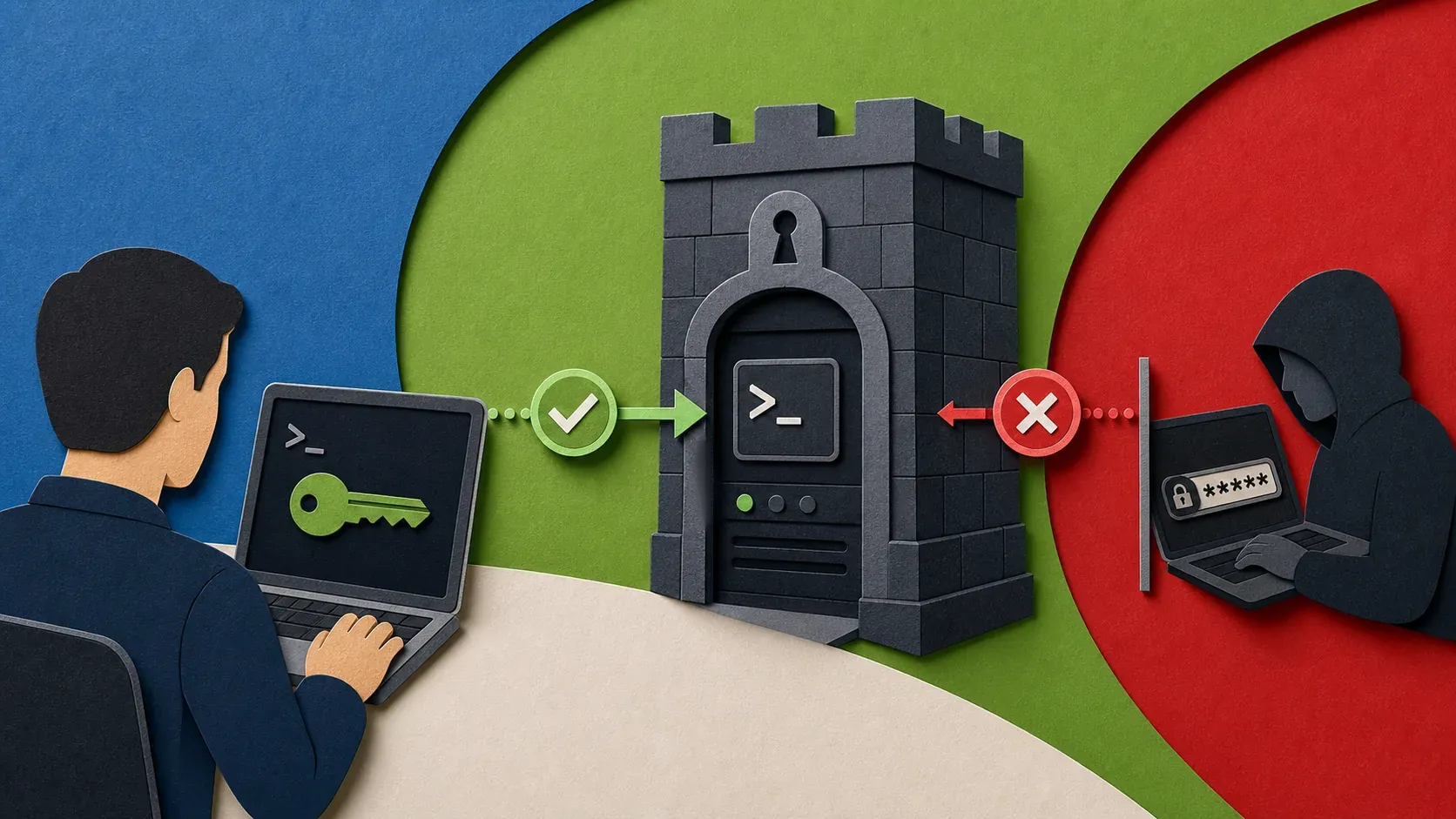
Go beyond basic SSH setup: disable password auth, lock down sshd_config with strong modern ciphers, add Fail2Ban for automated blocking, and optionally add TOTP two-factor authentication. Every setting explained.
If your server has a public IP, it's getting SSH brute-force attempts right now. Not maybe. Not eventually. Right now. Check your auth log:
grep "Failed password" /var/log/auth.log | tail -20
You'll see hundreds — sometimes thousands — of failed login attempts from IPs you've never seen. Botnets scan the entire IPv4 space and hammer port 22 with common username/password combinations 24/7.
My basic VPS hardening guide covers the essentials. This SSH hardening guide goes deeper — every sshd_config setting that matters, key-based authentication, two-factor auth, and monitoring. By the end, your SSH setup will be hardened against everything from automated bots to targeted attacks.
What Do You Need Before Hardening SSH?
- A Linux VPS (Ubuntu 22.04/24.04 or Debian 12) with root or sudo access
- SSH access already working (don't lock yourself out before setting up alternatives)
- A second terminal/session open as a safety net while making changes
Warning: Always keep a second SSH session open when modifying SSH config. If you make a mistake, the existing session stays connected. Test your new config in a new connection before closing the old one.
1. How Do You Set Up Key-Based SSH Authentication?
Password authentication is the weakest link. Even a strong password can be brute-forced given enough time. SSH keys are cryptographically stronger and immune to dictionary attacks.
Generate a Key Pair (on your local machine)
ssh-keygen -t ed25519 -C "[email protected]"
Ed25519 is the modern default — faster and more secure than RSA. If you need RSA compatibility (some older systems), use:
ssh-keygen -t rsa -b 4096 -C "[email protected]"
You'll be prompted for a passphrase. Use one. The passphrase encrypts the private key on disk. If someone steals your key file, the passphrase is the last line of defense.
Copy the Public Key to Your Server
ssh-copy-id -i ~/.ssh/id_ed25519.pub user@your-server-ip
Or manually:
cat ~/.ssh/id_ed25519.pub | ssh user@your-server-ip "mkdir -p ~/.ssh && chmod 700 ~/.ssh && cat >> ~/.ssh/authorized_keys && chmod 600 ~/.ssh/authorized_keys"
Test Key-Based Login
Open a new terminal (keep the old one open) and test:
ssh user@your-server-ip
If it logs in without asking for a password (or asks for your key passphrase instead), key auth is working.
2. How Do You Harden Your sshd_config Settings?
The main SSH server config lives at /etc/ssh/sshd_config. Every change below goes in this file. After editing, restart SSH to apply:
sudo systemctl restart sshd
Disable Password Authentication
Once key-based auth works, disable passwords entirely:
PasswordAuthentication no
This single change eliminates brute-force password attacks completely. Bots can hammer port 22 all day — without the private key, they're not getting in.
Disable Root Login
PermitRootLogin no
Even with key auth, there's no reason to allow direct root login. Use a regular user and sudo for privilege escalation. This adds a layer — an attacker needs both the SSH key and knowledge of which user has sudo access.
Change the Default Port
Port 2222
Changing from port 22 won't stop a determined attacker, but it eliminates 99% of automated bot traffic. Most botnets only scan port 22. This is security through obscurity — not a defense by itself, but it reduces noise in your logs dramatically.
After changing the port, update your firewall:
sudo ufw allow 2222/tcp comment "SSH custom port"
sudo ufw delete allow 22/tcp
And connect with:
ssh -p 2222 user@your-server-ip
Disable Empty Passwords
PermitEmptyPasswords no
This should already be the default, but explicitly set it.
Limit Authentication Attempts
MaxAuthTries 3
After 3 failed attempts, the connection is dropped. Combined with Fail2Ban, this makes brute-force attacks impractical.
Set a Login Grace Time
LoginGraceTime 30
The server waits 30 seconds for authentication before disconnecting. The default is 120 seconds — that's too generous. Reduce it to limit resource consumption from idle connections.
Disable X11 Forwarding
X11Forwarding no
Unless you're running graphical applications over SSH (unlikely on a server), disable this. It's an unnecessary attack surface.
Disable TCP Forwarding (if not needed)
AllowTcpForwarding no
If you don't use SSH tunnels, disable forwarding. If you use SSH tunnels for things like database access, leave it enabled or restrict to specific users.
Restrict SSH to Specific Users
AllowUsers yourusername
This is a whitelist. Only the listed users can log in via SSH. Everyone else is rejected before authentication even starts.
Use Strong Ciphers and Key Exchange Algorithms
KexAlgorithms curve25519-sha256,[email protected]
Ciphers [email protected],[email protected],[email protected]
MACs [email protected],[email protected]
HostKeyAlgorithms ssh-ed25519,rsa-sha2-512,rsa-sha2-256
This disables weak algorithms (3DES, SHA1, diffie-hellman-group1). Modern clients support all of these. If you have very old clients that can't connect after this change, they need upgrading — not your server weakening its crypto.
3. What Does a Fully Hardened sshd_config Look Like?
Here's the full set of changes in one block. Add or modify these lines in /etc/ssh/sshd_config:
# Network
Port 2222
AddressFamily inet                    # IPv4 only (set to 'any' if you use IPv6)
ListenAddress 0.0.0.0

# Authentication
PermitRootLogin no
PasswordAuthentication no
PermitEmptyPasswords no
PubkeyAuthentication yes
AuthenticationMethods publickey
MaxAuthTries 3
LoginGraceTime 30

# Access control
AllowUsers yourusername

# Security
X11Forwarding no
AllowTcpForwarding no
AllowAgentForwarding no
PermitTunnel no

# Crypto
KexAlgorithms curve25519-sha256,[email protected]
Ciphers [email protected],[email protected],[email protected]
MACs [email protected],[email protected]
HostKeyAlgorithms ssh-ed25519,rsa-sha2-512,rsa-sha2-256

# Logging
LogLevel VERBOSE

# Misc
ClientAliveInterval 300
ClientAliveCountMax 2
MaxSessions 3
Banner none
Validate the config before restarting:
sudo sshd -t
If there are no errors, restart:
sudo systemctl restart sshd
Test in a new terminal before closing your current session.
4. How Do You Set Up Fail2Ban for SSH Protection?
Fail2Ban monitors your auth logs and temporarily bans IPs that fail authentication too many times. Even with key-based auth, it reduces log noise and blocks scanners.
Install Fail2Ban:
sudo apt update && sudo apt install fail2ban -y
Create a local config (don't edit the main config — it gets overwritten on updates):
sudo tee /etc/fail2ban/jail.local << 'EOF'
[sshd]
enabled = true
port = 2222
filter = sshd
logpath = /var/log/auth.log
maxretry = 3
bantime = 3600
findtime = 600
banaction = ufw
EOF
This bans an IP for 1 hour after 3 failed attempts within 10 minutes. Start and enable Fail2Ban:
sudo systemctl enable fail2ban
sudo systemctl start fail2ban
Check the status:
sudo fail2ban-client status sshd
You'll see the number of currently banned IPs and total bans since startup.
5. How Do You Add TOTP Two-Factor Authentication to SSH?
For maximum security, add TOTP (Time-based One-Time Password) as a second factor. You'll need both your SSH key and a code from your authenticator app.
Install the Google Authenticator PAM module:
sudo apt install libpam-google-authenticator -y
Run the setup as your regular user (not root):
google-authenticator
Answer the prompts: - Time-based tokens: yes - Update .google_authenticator file: yes - Disallow multiple uses: yes - Rate limiting: yes
Scan the QR code with your authenticator app (Google Authenticator, Authy, or any TOTP app). Save the emergency codes in a secure location.
Configure PAM. Edit /etc/pam.d/sshd:
# Add at the end:
auth required pam_google_authenticator.so
Update sshd_config to require both key and TOTP:
AuthenticationMethods publickey,keyboard-interactive
ChallengeResponseAuthentication yes
Restart SSH:
sudo systemctl restart sshd
Now login requires: SSH key → TOTP code. Two factors, both under your control.
Warning: If you enable 2FA, make sure you have your emergency codes saved somewhere physically secure. Losing access to your authenticator app AND your emergency codes means you're locked out.
6. How Do You Monitor Who Accesses Your Server via SSH?
Hardening is only half the job. You also need to know who's connecting and when.
Check Active Sessions
who
w
Review Recent Logins
last -20
Watch Failed Attempts in Real Time
sudo tail -f /var/log/auth.log | grep "Failed\|Accepted"
Set Up Login Notifications
Add this to /etc/profile.d/ssh-notify.sh to get notified on every successful login:
#!/bin/bash
if [ -n "$SSH_CONNECTION" ]; then
    IP=$(echo "$SSH_CONNECTION" | awk '{print $1}')
    echo "SSH login: $(whoami) from $IP at $(date)" | \
        mail -s "SSH Login Alert: $(hostname)" [email protected] 2>/dev/null
fi
Make it executable:
sudo chmod +x /etc/profile.d/ssh-notify.sh
This sends you an email every time someone logs in via SSH. If you see a login you don't recognize, investigate immediately.
What Are the Most Important SSH Security Considerations?
- Key rotation. Rotate your SSH keys annually. Generate a new pair, add the new public key, verify it works, then remove the old one from
authorized_keys. - Agent forwarding risks. If you enable SSH agent forwarding (
-A), anyone with root on the intermediate server can use your agent to authenticate to other servers. UseProxyJumpinstead of agent forwarding where possible. - Authorized keys audit. Periodically check
~/.ssh/authorized_keyson all users. Remove any keys you don't recognize. - SSH config on the client side. Create
~/.ssh/configentries for your servers to avoid typing ports and usernames:
Host byteguard
    HostName your-server-ip
    User yourusername
    Port 2222
    IdentityFile ~/.ssh/id_ed25519
Then connect with ssh byteguard.
How Do You Troubleshoot Common SSH Hardening Issues?
Problem: Locked out after disabling password auth. Cause: Key-based auth wasn't properly configured before disabling passwords. Fix: Access your server through your hosting provider's console (Hetzner has a web console). Re-enable PasswordAuthentication yes, restart SSH, and fix your key setup.
Problem: Connection refused after changing the port. Cause: Firewall doesn't allow the new port, or you forgot to update the SSH config. Fix: Connect via console, check ufw status, and ensure the new port is allowed. Verify sshd_config has the right port.
Problem: "Too many authentication failures" error. Cause: SSH agent is offering multiple keys before the right one. Fix: Specify the key explicitly: ssh -i ~/.ssh/id_ed25519 -p 2222 user@server. Or set IdentitiesOnly yes in your SSH client config.
Problem: 2FA prompt doesn't appear. Cause: PAM module not loaded or sshd_config not updated. Fix: Verify auth required pam_google_authenticator.so is in /etc/pam.d/sshd. Verify ChallengeResponseAuthentication yes and AuthenticationMethods publickey,keyboard-interactive in sshd_config. Restart SSH.
Problem: Fail2Ban not banning IPs. Cause: Wrong log path or port in jail config. Fix: Check sudo fail2ban-client status sshd for errors. Verify logpath matches your system (/var/log/auth.log on Ubuntu/Debian). Verify the port matches your custom SSH port.
What Is the Result of a Fully Hardened SSH Configuration?
SSH is the front door to your server. Every hardening step here stacks — key-based auth eliminates password attacks, Fail2Ban blocks scanners, a custom port reduces noise, and 2FA adds a second factor even if your key is compromised.
If you haven't done the basics yet, start with my VPS hardening guide — it covers UFW, unattended upgrades, and user setup alongside basic SSH config. For protecting other services, check out the Fail2Ban setup guide and Docker security best practices.
Your server is only as secure as its weakest entry point. Make SSH a strong one.
Want your server hardened for you?
Non-root user, SSH keys, UFW, fail2ban, auto security updates — done properly in an afternoon for $49. Already locked down and want a second pair of eyes before something bites? $200–500 hardening audit.

Comments
Sign in with GitHub to comment. Threads live in the byteguard-comments repo.