 ← Back
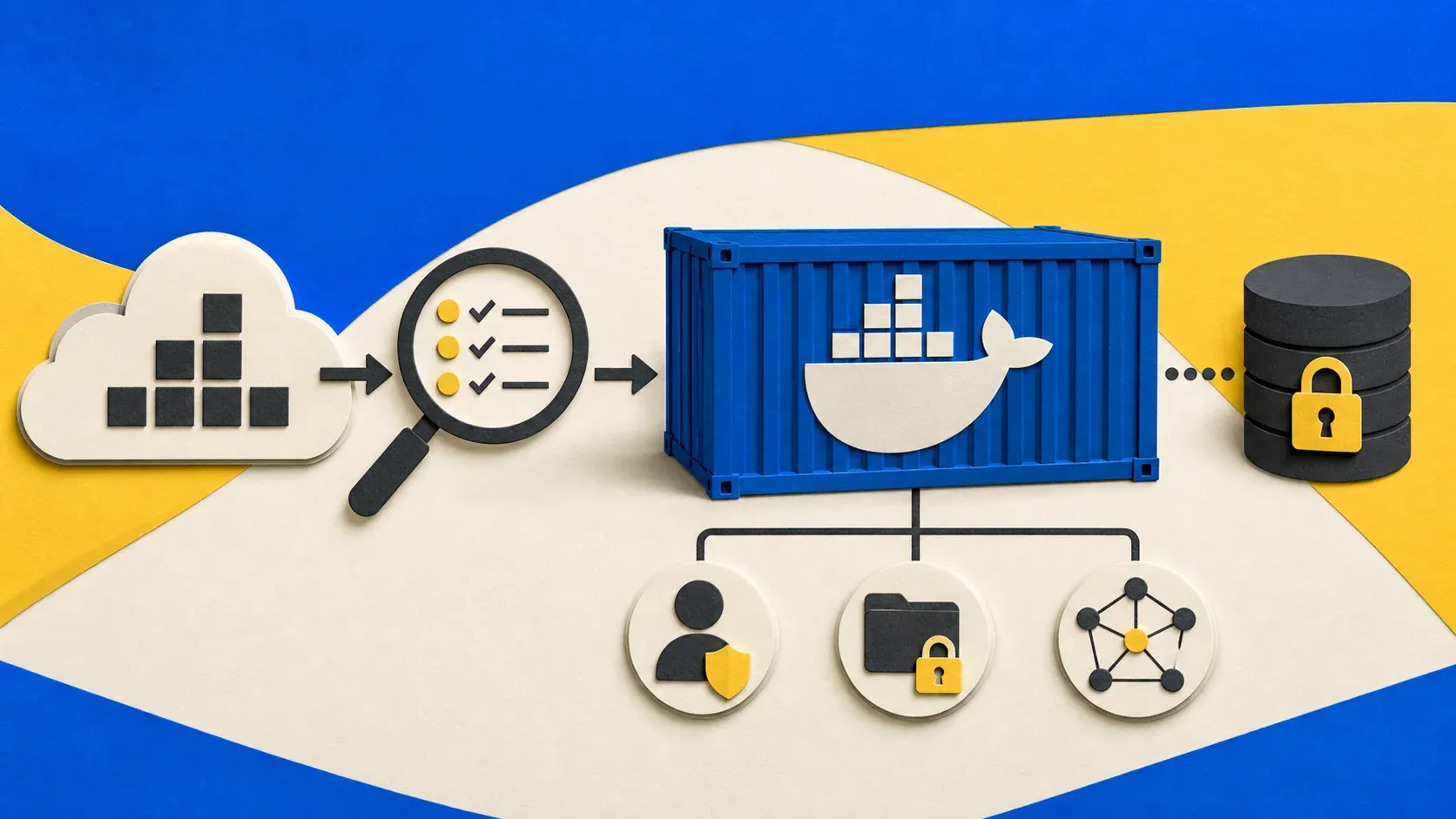
TL;DR: The Docker security practices that reduce the most risk are running applications as non-root, publishing only required ports, dropping privileges, protecting the Docker socket, scanning pinned images, and testing backups.
Docker makes a self-hosted service easy to launch, but a working Compose file is not automatically a secure one. A published port may bypass the firewall policy you expected, a leaked Docker socket can provide host-level control, and an application running as UID 0 gets more room to cause damage after a compromise.
I refreshed this guide after auditing the production VPS behind ByteGuard on July 20, 2026. It was running Docker Engine 29.6.1 and nine containers from the stack I built on Hetzner. None were privileged, AppArmor and Docker's default seccomp profile were active, and only the reverse proxy published ports 80 and 443 publicly. The audit also found unfinished work: only four services explicitly declared a non-root user, none used a read-only root filesystem, and no service declared a PID limit.
That is the useful lesson: Docker security is not a badge you earn once. It is a repeatable review of identities, ports, mounts, images, privileges, limits, logs, and recovery.
What Should You Audit Before Changing Anything?
Start by recording the current state, because hardening without a baseline turns every failure into guesswork. These read-only commands show the engine's security features, published ports, runtime users, and resource use:
docker version --format 'server={{.Server.Version}}'
docker info --format 'security={{json .SecurityOptions}}'
docker ps --format 'table {{.Names}}\t{{.Image}}\t{{.Ports}}'
docker stats --no-stream
docker inspect --format '{{.Name}} user={{json .Config.User}} privileged={{.HostConfig.Privileged}} readonly={{.HostConfig.ReadonlyRootfs}} pids={{.HostConfig.PidsLimit}}' $(docker ps -q)
Save the output with the audit date. An empty Config.User means the image has not declared a runtime user in its final configuration; inspect the image and its running processes before assuming an entrypoint safely drops privileges.
On my 4 GB VPS, the nine containers used about 1.1 GB combined during the spot check. Ghost used 239 MiB, Nginx Proxy Manager 105 MiB, and Uptime Kuma 223 MiB. Those numbers are not universal limits, but they are evidence I can use to choose realistic ceilings instead of copying arbitrary values.
The checklist I run on every new VPS — SSH, firewall, kernel, Docker, monitoring, backups. Drop your email and I’ll send the PDF plus one practical tutorial each week. No spam.
1. Run the Application as a Non-Root User
Running the application as non-root reduces what a compromised process can change inside its container. It does not make container escape impossible, and a numeric user must still be able to read and write the directories the application genuinely needs.
services:
  app:
    image: ghcr.io/example/app:1.2.3
    user: "10001:10001"
    volumes:
      - app_data:/var/lib/app
Before applying this pattern, check the image documentation and ownership of existing data. A blind recursive chown can break an image that expects several internal users. Test with a backup and inspect the effective process identity:
docker compose up -d
docker compose exec app id
docker compose logs --tail=100 app
Docker's rootless mode is a separate, stronger architectural option: it runs both the daemon and containers inside a user namespace without root privileges. Moving an existing multi-service host to rootless mode affects ports, storage, cgroups, and operational tooling, so treat it as a planned migration rather than a line added to Compose.
2. Prevent Privilege Escalation and Drop Capabilities
Most web applications do not need the full default capability set. Docker recommends removing every capability a process does not explicitly require, while no-new-privileges stops processes from gaining privileges through mechanisms such as setuid binaries.
services:
  app:
    security_opt:
      - no-new-privileges:true
    cap_drop:
      - ALL
Start with cap_drop: [ALL] in staging and add back only a documented requirement. A service binding to a privileged port may need NET_BIND_SERVICE; a normal backend listening on port 8080 usually does not. Never solve a vague permissions failure with privileged: true.
Docker's default seccomp profile blocks roughly 44 system calls while retaining broad compatibility. Keep it enabled. seccomp=unconfined, apparmor=unconfined, host PID mode, and host networking should each require a written reason.
3. Make the Root Filesystem Read-Only
A read-only root filesystem prevents a compromised application from replacing its binaries or persisting files outside approved mounts. Give it narrowly scoped writable locations for data and temporary files.
services:
  app:
    read_only: true
    tmpfs:
      - /tmp:size=64m,mode=1777
    volumes:
      - app_data:/var/lib/app
This change exposes undocumented write paths quickly. Run the service, exercise uploads, scheduled jobs, upgrades, and restarts, then inspect docker compose logs for Read-only file system errors. Add a volume or tmpfs only for the exact path that needs it.
4. Publish Fewer Ports and Bind Deliberately
A Docker port published without a host address listens on every host address by default. The safer design is to publish only the reverse proxy publicly and keep application ports on a user-defined Docker network.
services:
  proxy:
    ports:
      - "80:80"
      - "443:443"
    networks: [frontend]

  app:
    expose:
      - "8080"
    networks: [frontend]

  admin:
    ports:
      - "127.0.0.1:9000:9000"
expose documents an internal container port; it does not publish that port on the host. Binding an admin interface to 127.0.0.1 makes it reachable from the host but not directly from the public network.
Docker's own firewall documentation warns that published traffic is diverted before the chains UFW normally uses. Do not set Docker's iptables option to false as a shortcut; Docker says that is likely to break container networking. Use explicit loopback bindings, an authenticated reverse proxy, and carefully tested rules in the DOCKER-USER path when filtering forwarded traffic.
For a practical proxy layout, see my Nginx Proxy Manager Docker setup.
5. Separate Frontend and Backend Networks
Separate networks limit lateral movement by preventing every service from receiving a route to every other service. Put the proxy and application on a frontend network, and connect the application and database through a backend network.
services:
  proxy:
    networks: [frontend]

  app:
    networks: [frontend, backend]

  db:
    networks: [backend]

networks:
  frontend: {}
  backend:
    internal: true
An internal: true network is externally isolated, so use it only when its services do not need direct outbound access. Network separation is not authentication: the database still needs credentials, updates, backups, and its own least-privilege configuration.
6. Keep Secrets Out of Images and Git
Compose interpolation with a protected .env file is acceptable for many single-host setups, but it is still plaintext and container environment variables can appear in inspection output. Prefer file-based secrets when the image supports a _FILE setting.
services:
  db:
    image: postgres:15-alpine
    environment:
      POSTGRES_PASSWORD_FILE: /run/secrets/db_password
    secrets:
      - db_password

secrets:
  db_password:
    file: ./secrets/db_password.txt
Protect the source file and exclude the whole secrets directory from Git and the build context:
chmod 600 secrets/db_password.txt
printf 'secrets/\n.env\n' >> .gitignore
printf 'secrets/\n.env\n' >> .dockerignore
File permissions do not replace secret rotation. If a token reaches Git history, assume it is compromised, revoke it, replace every consumer, and verify that the old token fails. Removing the line from the latest commit is not enough.
7. Set Memory, CPU, and PID Limits
Resource limits contain denial-of-service impact and prevent one container from exhausting a small VPS. Choose limits from measured peaks, then leave enough headroom for upgrades and traffic bursts.
services:
  app:
    mem_limit: 512m
    cpus: 1.0
    pids_limit: 200
After deployment, verify the effective configuration rather than trusting indentation:
docker inspect app --format 'memory={{.HostConfig.Memory}} nano_cpus={{.HostConfig.NanoCpus}} pids={{.HostConfig.PidsLimit}}'
docker stats --no-stream app
My spot check found Ghost at 239 MiB and Nginx Proxy Manager at 105 MiB, but a single reading is not enough. Observe normal traffic, imports, backups, and upgrades. A limit that kills the application during routine maintenance is not hardening; it is a self-inflicted outage. If you are still sizing the host, my self-hosting VPS comparison explains the trade-offs without treating RAM as the only decision.
8. Pin, Scan, and Deliberately Update Images
An image tag can move, while a digest identifies exact content. Pinning a digest gives reproducibility, but it also means you must operate an update process so security fixes do not stay frozen forever.
services:
  app:
    # Replace both placeholders with a reviewed release and its real digest.
    image: ghcr.io/example/app:<VERSION>@sha256:<DIGEST>
Scan the image you intend to deploy, prioritize fixable critical and high findings, and review exposure rather than treating every CVE count as equal:
docker scout cves --only-severity critical,high --only-fixed ghcr.io/example/app:<VERSION>
# Alternative:
trivy image --scanners vuln --severity HIGH,CRITICAL ghcr.io/example/app:<VERSION>
Docker documents docker scout cves as an image vulnerability analyzer, while Trivy can inspect a local engine or registry image. Docker's build guidance recommends trusted minimal bases, frequent rebuilds, and digest pinning when supply-chain reproducibility matters.
For self-hosted production, I prefer a scheduled maintenance window: back up, pull or update the reviewed digest, recreate the service, run health checks, and keep a tested rollback. Blind auto-update tooling trades patch latency for surprise breakage.
9. Treat the Docker Socket as Root-Level Access
Access to /var/run/docker.sock can normally be turned into host control by starting a container with powerful mounts. Do not mount it into dashboards, CI jobs, or automation tools merely for convenience.
docker inspect $(docker ps -q) --format '{{.Name}} {{json .Mounts}}' | grep docker.sock
If an operational tool genuinely requires the socket, isolate and harden that tool as part of the trusted computing base. Prefer a narrow socket proxy with an explicit allowlist where practical, never expose an unauthenticated Docker API over TCP, and use SSH or mutual TLS for remote engine access. Docker provides separate guidance for protecting daemon access.
10. Rotate Logs, Check Health, and Test Recovery
Security controls need evidence and a recovery path. Rotate local logs, define a health check that the image can actually execute, monitor the public service externally, and restore backups on a separate test path.
services:
  app:
    logging:
      driver: json-file
      options:
        max-size: "10m"
        max-file: "3"
    healthcheck:
      test: ["CMD", "wget", "-q", "--spider", "http://127.0.0.1:8080/health"]
      interval: 30s
      timeout: 5s
      retries: 3
      start_period: 20s
Confirm that wget exists in the image; minimal images may need a language-native check instead. Docker marks an unhealthy container but does not automatically make your backup restorable. My Restic and Backblaze backup guide covers encrypted off-site copies, while Uptime Kuma covers external availability checks.
A Hardened Compose Template
This template combines the controls, but it is intentionally not a universal copy-paste service. Replace the marked image, user, paths, and health command using the application's official documentation.
services:
  app:
    image: ghcr.io/example/app:<VERSION>@sha256:<DIGEST>
    user: "10001:10001"
    read_only: true
    tmpfs:
      - /tmp:size=64m,mode=1777
    volumes:
      - app_data:/var/lib/app
    expose:
      - "8080"
    networks:
      - frontend
    security_opt:
      - no-new-privileges:true
    cap_drop:
      - ALL
    mem_limit: 512m
    cpus: 1.0
    pids_limit: 200
    logging:
      driver: json-file
      options:
        max-size: "10m"
        max-file: "3"
    healthcheck:
      test: ["CMD", "wget", "-q", "--spider", "http://127.0.0.1:8080/health"]
      interval: 30s
      timeout: 5s
      retries: 3
      start_period: 20s

networks:
  frontend: {}

volumes:
  app_data: {}
Apply one control at a time, run the real workload, and keep a rollback. That method takes longer than pasting a "secure" Compose file, but it tells you which permission or mount the application actually needs.
Docker Security Checklist
- [ ] Record Docker version, security options, users, ports, mounts, and resource use.
- [ ] Run the application as a documented non-root UID/GID where supported.
- [ ] Keep
privilegedoff and retain AppArmor plus the default seccomp profile. - [ ] Set
no-new-privilegesand drop unneeded capabilities. - [ ] Make the root filesystem read-only with narrow writable mounts.
- [ ] Publish only required ports; bind admin interfaces to loopback.
- [ ] Split frontend and backend networks.
- [ ] Keep secrets out of images, Git, and ordinary environment variables where possible.
- [ ] Set and verify memory, CPU, and PID limits.
- [ ] Pin reviewed images and scan them before deployment.
- [ ] Avoid Docker socket mounts and unauthenticated remote APIs.
- [ ] Rotate logs, monitor health, and prove that backups restore.
Troubleshooting Docker Hardening
Why does the container fail after I set a non-root user?
The declared UID probably cannot access a required volume or privileged port. Inspect the image documentation and logs, then fix ownership only for the documented writable directories instead of recursively changing the whole application tree.
Why does read_only: true break startup?
The application is writing outside its persistent data path. The logs usually reveal the path; mount that exact directory as a named volume or tmpfs, then rerun the application's startup, upgrade, upload, and scheduled-job paths.
Why is a Docker port reachable despite UFW?
Docker-published traffic is routed before the chains UFW normally uses. Bind private services to 127.0.0.1, remove unnecessary ports entries, or add carefully tested filtering in the Docker forwarding path; do not disable Docker's firewall management without replacement rules.
Should every self-hoster use rootless Docker?
Rootless mode reduces daemon and runtime privilege, but it changes networking, storage locations, cgroup behavior, and service management. It is a strong option for compatible workloads, not a zero-risk toggle for an existing production host.
How often should I scan container images?
Scan before first deployment, whenever the image or its base changes, and on a recurring schedule because vulnerability data changes even when the digest does not. Prioritize reachable, fixable critical and high findings and document exceptions instead of chasing an unfiltered count.
Conclusion
Docker security is strongest when each control has a narrow purpose and a verification command. Non-root users and reduced capabilities limit impact; read-only filesystems restrict persistence; deliberate ports and networks reduce reachability; scanning and controlled updates address known vulnerable components; tested backups provide the final recovery layer.
The July audit of ByteGuard's host found good foundations—no privileged containers, AppArmor and seccomp enabled, and only the reverse proxy publicly exposed—but also gave me a concrete queue for non-root coverage, PID limits, and read-only filesystems. Publishing that gap is more useful than pretending a production stack is ever "finished."
If you are building a new stack, start with Linux VPS hardening and the deeper SSH hardening guide before Docker, then use the VPS setup service if you would rather have the host, firewall, Docker, reverse proxy, and SSL configured for you.
Disclosure
No company paid for this refresh, and it contains no provider affiliate recommendation. The measurements come from the ByteGuard production host audited on July 20, 2026.
— enim


Comments
Sign in with GitHub to comment. Threads live in the byteguard-comments repo.