 ← Back
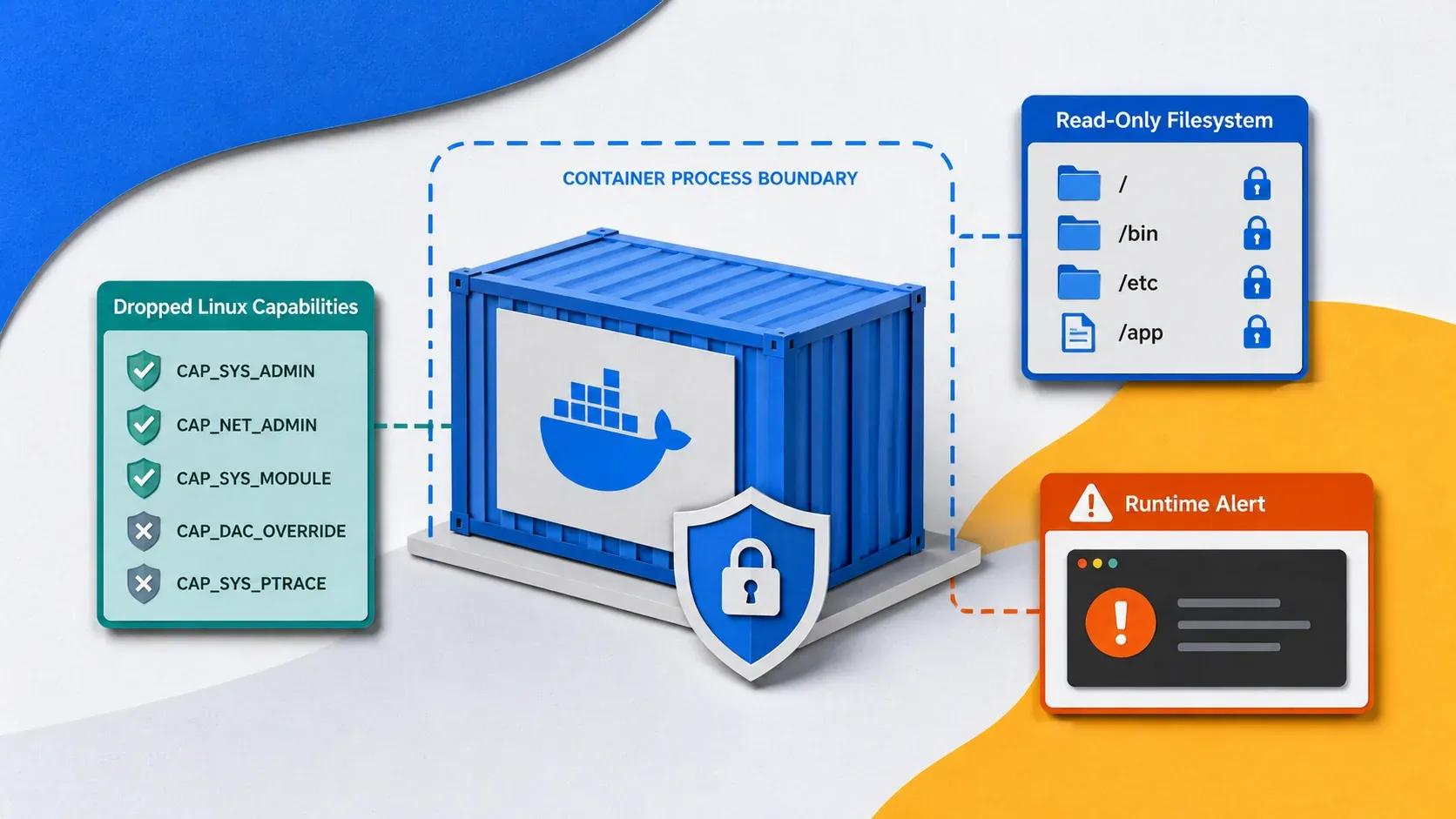
If you followed my earlier post on Docker security best practices, you already know the fundamentals: non-root users, read-only filesystems, dropped capabilities. Those practices eliminate the low-hanging fruit. But containers run in production, face real attackers, and the basics are table stakes, not a finish line. Advanced Docker container security requires tools and techniques that go deeper — kernel-level restrictions, image provenance verification, runtime anomaly detection, and automated vulnerability scanning baked into your pipeline.
This guide covers the next layer. By the end, you will have seccomp profiles restricting system calls, AppArmor policies limiting file access, Trivy scanning your images for CVEs, Falco watching for suspicious runtime behavior, and Docker Content Trust verifying image signatures. These are the techniques that separate a hobbyist Docker setup from a hardened production deployment.
Prerequisites
- A Linux server running Docker Engine 24+ (Ubuntu 22.04 or Debian 12 recommended)
- Docker Compose v2 installed
- Basic familiarity with Docker (images, containers, volumes, networking)
- Completion of the fundamentals from my Docker security best practices guide
- A VPS or home lab — if you need one, my VPS setup guide covers the infrastructure
Seccomp Profiles — Restricting System Calls
Seccomp (Secure Computing Mode) filters which Linux system calls a container can make. Docker ships with a default seccomp profile that blocks around 44 of the 300+ available syscalls — things like reboot, mount, and clock_settime. But the default profile is permissive by design. A custom profile lets you whitelist only the syscalls your application actually needs.
Why This Matters
If an attacker gains code execution inside a container, their first move is often to escape to the host. Most container escape techniques rely on specific syscalls — ptrace, unshare, mount. A tight seccomp profile makes these escapes impossible even if the container runtime has a zero-day.
Creating a Custom Seccomp Profile
Start by examining what syscalls your application uses. Run your container with the default profile and audit:
docker run --rm --security-opt seccomp=unconfined \
  strace -cf -S calls your-image your-command 2>&1 | tail -20
This gives you a frequency count of every syscall your process makes. Build your allowlist from this output.
Here is a minimal seccomp profile for a typical Node.js web application:
{
  "defaultAction": "SCMP_ACT_ERRNO",
  "architectures": ["SCMP_ARCH_X86_64"],
  "syscalls": [
    {
      "names": [
        "accept", "accept4", "access", "arch_prctl", "bind", "brk",
        "capget", "capset", "chdir", "clock_getres", "clock_gettime",
        "clone", "close", "connect", "dup", "dup2", "dup3",
        "epoll_create1", "epoll_ctl", "epoll_wait", "eventfd2",
        "execve", "exit", "exit_group", "faccessat", "fchmod",
        "fchown", "fcntl", "fstat", "fstatfs", "futex",
        "getcwd", "getdents64", "getegid", "geteuid", "getgid",
        "getpeername", "getpid", "getppid", "getrandom", "getsockname",
        "getsockopt", "getuid", "ioctl", "listen", "lseek",
        "madvise", "memfd_create", "mmap", "mprotect", "mremap",
        "munmap", "newfstatat", "openat", "pipe2", "poll",
        "prctl", "pread64", "prlimit64", "read", "readlink",
        "recvfrom", "recvmsg", "rename", "rt_sigaction",
        "rt_sigprocmask", "rt_sigreturn", "sched_getaffinity",
        "sched_yield", "sendmsg", "sendto", "set_robust_list",
        "set_tid_address", "setgid", "setgroups", "setsockopt",
        "setuid", "shutdown", "sigaltstack", "socket", "statfs",
        "sysinfo", "tgkill", "umask", "uname", "unlink",
        "wait4", "write", "writev"
      ],
      "action": "SCMP_ACT_ALLOW"
    }
  ]
}
Save this as seccomp-nodejs.json and apply it:
docker run --rm \
  --security-opt seccomp=seccomp-nodejs.json \
  your-node-app
In Docker Compose:
services:
  web:
    image: your-node-app
    security_opt:
      - seccomp=./seccomp-nodejs.json
Note: Start with the default Docker profile and remove syscalls rather than building from scratch. The default profile is at /etc/docker/seccomp/default.json on most installations, or you can export it from the Moby repository on GitHub.Testing Your Profile
Run your application's full test suite with the profile applied. If a syscall is blocked, you will see EPERM (Operation not permitted) errors in your application logs. Add the missing syscall to your allowlist and retest.
AppArmor Policies — Restricting File and Network Access
While seccomp controls what syscalls a process can make, AppArmor controls what resources it can access — files, directories, network operations, capabilities. They complement each other: seccomp is the verb filter, AppArmor is the noun filter.
Creating a Custom AppArmor Profile
Here is an AppArmor profile for a container running a Python web API that should only read from /app and write to /tmp:
cat > /etc/apparmor.d/docker-python-api << 'PROFILE'
#include <tunables/global>

profile docker-python-api flags=(attach_disconnected,mediate_deleted) {
  #include <abstractions/base>
  #include <abstractions/python>

  # Allow reading application code
  /app/** r,

  # Allow writing to tmp only
  /tmp/** rw,

  # Allow network access (TCP)
  network inet tcp,
  network inet6 tcp,

  # Deny everything else by default
  deny /etc/shadow r,
  deny /etc/passwd w,
  deny /proc/*/mem rw,
  deny /sys/** w,
}
PROFILE
Load the profile:
sudo apparmor_parser -r /etc/apparmor.d/docker-python-api
Apply it to your container:
docker run --rm \
  --security-opt apparmor=docker-python-api \
  your-python-api
Verifying AppArmor Is Active
Check the status of loaded profiles:
sudo aa-status | grep docker
You should see your profile listed under "enforced." If it appears under "complain," the profile logs violations but does not block them — useful for testing but not for production.
Docker Content Trust — Image Signing and Verification
How do you know the image you pulled is the one the author published? Docker Content Trust (DCT) uses digital signatures to verify image integrity and publisher identity. Without it, you trust the registry implicitly — and registries have been compromised before.
Enabling Docker Content Trust
export DOCKER_CONTENT_TRUST=1
With this set, docker pull and docker push will enforce signature verification. Unsigned images will be rejected.
For permanent enforcement, add this to /etc/environment or your shell profile:
echo 'DOCKER_CONTENT_TRUST=1' | sudo tee -a /etc/environment
Signing Your Own Images
Generate a signing key:
docker trust key generate <YOUR_NAME>
Add yourself as a signer for a repository:
docker trust signer add --key <YOUR_NAME>.pub <YOUR_NAME> <YOUR_REGISTRY>/<YOUR_REPO>
Sign and push:
docker trust sign <YOUR_REGISTRY>/<YOUR_REPO>:latest
Inspecting Trust Data
docker trust inspect --pretty <YOUR_REGISTRY>/<YOUR_REPO>
This shows who signed the image and when. In a team environment, require multiple signers before an image can be deployed — this prevents a single compromised CI/CD pipeline from pushing malicious images.
Note: Docker Content Trust does not verify the contents of the image are vulnerability-free. It only verifies that the image has not been tampered with since signing. You still need vulnerability scanning, which is covered next.
Vulnerability Scanning with Trivy
Trivy is an open-source scanner from Aqua Security that finds CVEs in OS packages, language-specific dependencies, and misconfigurations inside container images. It is fast, accurate, and integrates into CI/CD pipelines with zero configuration.
Installation
sudo apt install -y wget apt-transport-https gnupg lsb-release
wget -qO - https://aquasecurity.github.io/trivy-repo/deb/public.key | gpg --dearmor | sudo tee /usr/share/keyrings/trivy.gpg > /dev/null
echo "deb [signed-by=/usr/share/keyrings/trivy.gpg] https://aquasecurity.github.io/trivy-repo/deb $(lsb_release -sc) main" | sudo tee /etc/apt/sources.list.d/trivy.list
sudo apt update && sudo apt install -y trivy
Scanning an Image
trivy image nginx:latest
Sample output:
nginx:latest (debian 12.4)
Total: 85 (UNKNOWN: 0, LOW: 52, MEDIUM: 27, HIGH: 5, CRITICAL: 1)

┌──────────────────┬──────────────────┬──────────┬───────────────────┐
│     Library      │  Vulnerability   │ Severity │  Fixed Version    │
├──────────────────┼──────────────────┼──────────┼───────────────────┤
│ libssl3          │ CVE-2024-XXXXX   │ CRITICAL │ 3.0.13-1~deb12u2  │
│ curl             │ CVE-2024-XXXXX   │ HIGH     │ 7.88.1-10+deb12u6 │
└──────────────────┴──────────────────┴──────────┴───────────────────┘
Failing CI/CD on Critical Vulnerabilities
Add Trivy to your build pipeline with a severity threshold:
trivy image --exit-code 1 --severity CRITICAL,HIGH your-image:latest
Exit code 1 means vulnerabilities were found at the specified severity. Your CI pipeline treats this as a build failure.
Scanning Docker Compose Projects
Scan every image in a Compose file:
for image in $(docker compose config --images); do
  echo "=== Scanning $image ==="
  trivy image --severity HIGH,CRITICAL "$image"
done
Scanning Filesystem and Config Files
Trivy also detects misconfigurations in Dockerfiles and Compose files:
trivy config .
This catches issues like running as root, using latest tags, and missing health checks — problems I covered in the fundamentals post.
Runtime Security with Falco
Everything so far operates at build time or deploy time. Falco is the runtime layer — it watches what containers actually do and alerts on suspicious behavior. Think of it as an intrusion detection system for containers.
Falco monitors Linux system calls in real time using eBPF and triggers alerts when behavior matches predefined rules. Examples: a shell spawning inside a container, a process reading /etc/shadow, an outbound connection to a known malicious IP.
Installation via Docker
Ironically, the best way to run Falco is in a container — with the required privileges:
services:
  falco:
    image: falcosecurity/falco:latest
    container_name: falco
    privileged: true
    volumes:
      - /var/run/docker.sock:/host/var/run/docker.sock:ro
      - /proc:/host/proc:ro
      - /dev:/host/dev
      - /etc:/host/etc:ro
      - ./falco-rules:/etc/falco/rules.d:ro
    environment:
      - HOST_ROOT=/host
Note: Yes, Falco requires privileged mode and access to the Docker socket. This is the trade-off — to monitor all containers, the monitoring tool itself needs elevated access. Isolate Falco on a dedicated network and restrict access to its container.
Custom Falco Rules
Create a rules file to detect common attack patterns:
# falco-rules/custom-rules.yaml
- rule: Shell Spawned in Container
  desc: Detect shell process started in a container
  condition: >
    spawned_process and container and
    proc.name in (bash, sh, zsh, dash, ash) and
    not proc.pname in (cron, supervisord, entrypoint.sh)
  output: >
    Shell spawned in container
    (user=%user.name container=%container.name shell=%proc.name
     parent=%proc.pname cmdline=%proc.cmdline)
  priority: WARNING

- rule: Sensitive File Read in Container
  desc: Detect reads of sensitive files
  condition: >
    open_read and container and
    fd.name in (/etc/shadow, /etc/sudoers, /proc/1/environ)
  output: >
    Sensitive file read in container
    (user=%user.name file=%fd.name container=%container.name)
  priority: ERROR

- rule: Outbound Connection to Non-Standard Port
  desc: Detect containers connecting to unusual ports
  condition: >
    outbound and container and
    not fd.sport in (80, 443, 53, 5432, 3306, 6379, 27017)
  output: >
    Unexpected outbound connection
    (container=%container.name connection=%fd.name port=%fd.sport)
  priority: WARNING
Monitoring Falco Alerts
docker logs -f falco
In production, pipe Falco alerts to a SIEM or alerting system. Falco supports output to Slack, PagerDuty, and generic webhooks out of the box.
Docker Socket Protection
The Docker socket (/var/run/docker.sock) is the single most dangerous file on a Docker host. Any process with access to the socket has full control over the Docker daemon — it can create privileged containers, mount the host filesystem, and effectively gain root on the host.
Never Mount the Socket Unless Required
Review your Docker Compose files and remove socket mounts from any container that does not strictly need them:
grep -r "docker.sock" /opt/*/docker-compose.yml
Use a Socket Proxy
If a container needs limited Docker API access (monitoring, auto-updates), use a socket proxy like Tecnativa's docker-socket-proxy:
services:
  docker-proxy:
    image: tecnativa/docker-socket-proxy
    container_name: docker-socket-proxy
    environment:
      - CONTAINERS=1      # Allow listing containers
      - IMAGES=0          # Deny image operations
      - NETWORKS=0        # Deny network operations
      - VOLUMES=0         # Deny volume operations
      - POST=0            # Deny all POST requests (read-only)
      - BUILD=0
      - COMMIT=0
      - EXEC=0            # Deny exec into containers
    volumes:
      - /var/run/docker.sock:/var/run/docker.sock:ro
    networks:
      - docker-proxy

  watchtower:
    image: containrrr/watchtower
    environment:
      - DOCKER_HOST=tcp://docker-proxy:2375
    depends_on:
      - docker-proxy
    networks:
      - docker-proxy

networks:
  docker-proxy:
    driver: bridge
This gives Watchtower the ability to list containers but prevents it from executing commands, building images, or managing networks. If Watchtower is compromised, the blast radius is minimal.
Multi-Stage Builds for Minimal Attack Surface
The fewer files in your final image, the fewer things an attacker can exploit. Multi-stage builds let you compile your application in a fat builder image, then copy only the binary into a minimal runtime image.
# Stage 1: Build
FROM golang:1.22-bookworm AS builder
WORKDIR /app
COPY go.mod go.sum ./
RUN go mod download
COPY . .
RUN CGO_ENABLED=0 GOOS=linux go build -ldflags="-s -w" -o /app/server .

# Stage 2: Runtime
FROM gcr.io/distroless/static-debian12:nonroot
COPY --from=builder /app/server /server
USER nonroot:nonroot
EXPOSE 8080
ENTRYPOINT ["/server"]
The final image contains only the compiled binary and CA certificates. No shell, no package manager, no curl, no wget. An attacker who gains code execution has almost nothing to work with.
Compare the image sizes:
docker images | grep myapp
# myapp-full     latest   850MB
# myapp-minimal  latest   12MB
A smaller image is faster to pull, cheaper to store, and has a dramatically smaller CVE surface.
Security Headers for Containerized Web Apps
If your containers serve web traffic, verify they return proper security headers. I covered this in detail in my security headers guide, but here is the container-specific angle.
Add headers in your reverse proxy configuration rather than in each application. In Nginx:
add_header X-Content-Type-Options "nosniff" always;
add_header X-Frame-Options "DENY" always;
add_header Referrer-Policy "strict-origin-when-cross-origin" always;
add_header Permissions-Policy "camera=(), microphone=(), geolocation=()" always;
add_header Content-Security-Policy "default-src 'self'; script-src 'self'" always;
Security Considerations
Docker container security is not a single tool or configuration — it is a layered approach:
- Build time: Multi-stage builds, Trivy scanning, minimal base images
- Deploy time: Seccomp profiles, AppArmor policies, Content Trust, dropped capabilities
- Runtime: Falco monitoring, socket protection, read-only filesystems, network policies
The biggest risk I see in self-hosted environments is complacency after initial setup. Security is not a checklist you complete once. Schedule weekly Trivy scans, review Falco alerts daily, and update base images monthly at minimum.
When running on a VPS, these container-level protections layer on top of host-level hardening. If you have not secured your host yet, start with my Linux VPS hardening guide — container security means nothing if the host is compromised.
Troubleshooting
Problem: Container crashes with EPERM after applying a seccomp profile. Cause: Your custom seccomp profile is missing a required syscall. Fix: Run the container temporarily with --security-opt seccomp=unconfined and strace to identify the blocked syscall. Add it to your profile and retest.
Problem: Trivy scan shows vulnerabilities in the base image that have no fix available. Cause: The upstream distribution has not released a patch yet. Fix: Switch to a different base image (e.g., Alpine instead of Debian, or distroless). If the CVE does not apply to your use case (e.g., a library vulnerability in a package your app does not use), document the exception.
Problem: Falco generates excessive alerts for normal container behavior. Cause: Default Falco rules are broad and trigger on legitimate operations. Fix: Create exception lists in your custom rules using the not operator. Start Falco in "tap" mode to observe before enforcing.
Problem: Docker Content Trust blocks pulls of images you know are safe. Cause: The image publisher has not signed their images. Fix: Temporarily disable DCT for that pull with DOCKER_CONTENT_TRUST=0 docker pull image:tag, then re-enable it. Long-term, prefer signed images or build your own from a trusted Dockerfile.
Problem: Socket proxy blocks a legitimate API call from a monitoring tool. Cause: The proxy's environment variables are too restrictive for the tool's requirements. Fix: Review the tool's documentation for required Docker API endpoints and enable only those in the proxy configuration. Never set POST=1 unless the tool genuinely needs write access.
Conclusion
The fundamentals from my Docker security best practices post give you a solid foundation. This guide adds the advanced layers: seccomp restricts system calls, AppArmor restricts resource access, Trivy catches vulnerabilities before deployment, Falco detects threats at runtime, and Content Trust ensures image integrity.
No single tool makes containers secure. The strength is in layering — each control catches what the others miss. Start by adding Trivy to your build pipeline (it takes five minutes) and work outward from there.
If you are running these containers on a VPS, I use Hetzner for all my projects. The CPX22 handles a full Docker stack with monitoring comfortably, and you can follow my VPS setup guide to get started.

Comments
Sign in with GitHub to comment. Threads live in the byteguard-comments repo.