 ← Back
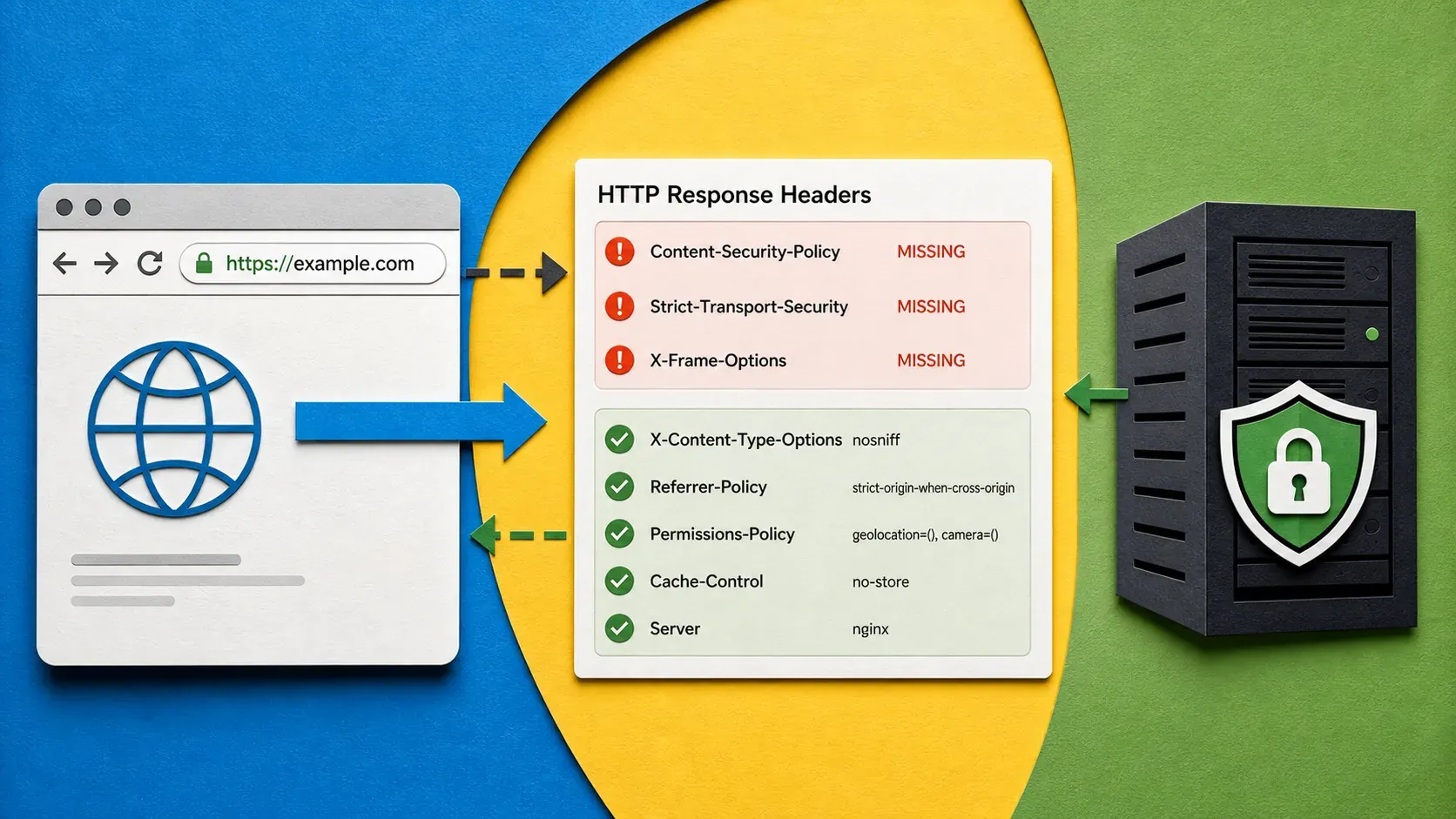
Every HTTP response your server sends includes headers that browsers use to decide how to handle your content. Get them wrong -- or leave them out entirely -- and you are handing attackers an open invitation. Clickjacking, cross-site scripting, MIME-type sniffing, protocol downgrade attacks: security headers are the first line of defense against all of these.
This guide is part of our Security Tools Series — hands-on guides for the tools every security-minded developer needs.
The problem is that most default server configurations ship with almost none of these headers set. I have audited dozens of self-hosted services, and the majority score an F on security header scanners. The good news: fixing this takes about fifteen minutes once you understand what each header does.
By the end of this post, you will know how to check security headers on any website, understand what each critical header does, and configure all of them in Nginx, Apache, and Caddy.
Prerequisites
- A live website or web application you control
- SSH access to your server (if you plan to add headers)
- One of: Nginx, Apache, or Caddy as your web server or reverse proxy
- Basic familiarity with your server's configuration files
If you are starting from scratch, my guide on setting up a VPS from scratch covers the initial server setup.
How to Check Security Headers on Any Website
Using Online Scanners
The fastest way to check security headers is with a dedicated scanner. Here are the tools I actually use:
- securityheaders.com -- Gives you a letter grade (A+ to F) and lists every missing header. Free, instant results.
- Mozilla Observatory (observatory.mozilla.org) -- More comprehensive. Checks headers, TLS, and other best practices. Scores out of 100.
- tools.byte-guard.net -- Our own header checker tool gives you a clean breakdown of what is present, what is missing, and exact configuration snippets to fix each issue.
Using curl from the Command Line
For a quick check without leaving your terminal:
curl -I https://your-domain.com
The -I flag fetches only the headers. You will see something like:
HTTP/2 200
content-type: text/html; charset=utf-8
strict-transport-security: max-age=31536000; includeSubDomains
x-content-type-options: nosniff
x-frame-options: SAMEORIGIN
If you do not see headers like Strict-Transport-Security, Content-Security-Policy, or X-Content-Type-Options in that output, your site is missing critical protections.
Using Browser Developer Tools
Open your browser's developer tools (F12), go to the Network tab, reload the page, click on the main document request, and check the Response Headers section. This is useful when you need to verify headers on pages that require authentication.
The Six Security Headers That Matter Most
Let me walk through each header, what it protects against, and how to configure it across all three major web servers.
Strict-Transport-Security (HSTS)
What it does: Tells browsers to only connect to your site over HTTPS. Once a browser sees this header, it will refuse to load your site over plain HTTP for the specified duration -- even if the user types http://.
What it prevents: Protocol downgrade attacks, SSL stripping, cookie hijacking over unencrypted connections.
Nginx:
add_header Strict-Transport-Security "max-age=31536000; includeSubDomains; preload" always;
Apache:
Header always set Strict-Transport-Security "max-age=31536000; includeSubDomains; preload"
Caddy:
header Strict-Transport-Security "max-age=31536000; includeSubDomains; preload"
Note: The preload directive submits your domain to browser preload lists (hstspreload.org). Only add it if you are certain every subdomain supports HTTPS. Removing a domain from the preload list takes months.The max-age=31536000 value is one year in seconds. Start with a shorter value like 86400 (one day) while testing, then increase it once you have confirmed everything works.
Content-Security-Policy (CSP)
Content-Security-Policy is the most powerful -- and most complex -- security header. It tells the browser exactly which sources are allowed to load scripts, styles, images, fonts, and other resources on your page.
What it prevents: Cross-site scripting (XSS), data injection, clickjacking (partially), and unauthorized resource loading.
A restrictive CSP looks like this:
Nginx:
add_header Content-Security-Policy "default-src 'self'; script-src 'self'; style-src 'self' 'unsafe-inline'; img-src 'self' data: https:; font-src 'self'; frame-ancestors 'none'; base-uri 'self'; form-action 'self'" always;
Apache:
Header always set Content-Security-Policy "default-src 'self'; script-src 'self'; style-src 'self' 'unsafe-inline'; img-src 'self' data: https:; font-src 'self'; frame-ancestors 'none'; base-uri 'self'; form-action 'self'"
Caddy:
header Content-Security-Policy "default-src 'self'; script-src 'self'; style-src 'self' 'unsafe-inline'; img-src 'self' data: https:; font-src 'self'; frame-ancestors 'none'; base-uri 'self'; form-action 'self'"
Breaking down the directives:
| Directive | Controls | Example Value |
|---|---|---|
default-src |
Fallback for all resource types | 'self' |
script-src |
JavaScript sources | 'self' https://cdn.example.com |
style-src |
CSS sources | 'self' 'unsafe-inline' |
img-src |
Image sources | 'self' data: https: |
font-src |
Font file sources | 'self' https://fonts.gstatic.com |
frame-ancestors |
Who can embed your page | 'none' |
form-action |
Where forms can submit | 'self' |
Warning: A misconfigured CSP will break your site. Start with Content-Security-Policy-Report-Only to log violations without blocking anything. Check the browser console for blocked resources, adjust your policy, then switch to the enforcing header.If you run Docker containers behind a reverse proxy (as I covered in my Docker security guide), CSP is especially important because each container may serve content from different origins.
X-Frame-Options
What it does: Controls whether your site can be embedded in <iframe>, <frame>, or <object> elements on other sites.
What it prevents: Clickjacking attacks, where an attacker overlays your site with invisible frames to trick users into clicking things they did not intend to.
Nginx:
add_header X-Frame-Options "SAMEORIGIN" always;
Apache:
Header always set X-Frame-Options "SAMEORIGIN"
Caddy:
header X-Frame-Options "SAMEORIGIN"
The three possible values:
DENY-- No one can frame your page, not even your own siteSAMEORIGIN-- Only pages on the same origin can frame itALLOW-FROM https://example.com-- Only the specified origin (deprecated in modern browsers)
For most sites, SAMEORIGIN is the right choice. Use DENY if you have no reason to embed your own pages.
Note: The frame-ancestors directive in CSP is the modern replacement for X-Frame-Options. Set both for backward compatibility.X-Content-Type-Options
What it does: Prevents browsers from MIME-type sniffing -- guessing the content type of a response instead of trusting the Content-Type header.
What it prevents: Drive-by downloads, where a browser interprets an uploaded file (say, a .txt that contains JavaScript) as executable content.
Nginx:
add_header X-Content-Type-Options "nosniff" always;
Apache:
Header always set X-Content-Type-Options "nosniff"
Caddy:
header X-Content-Type-Options "nosniff"
This one is simple: the only valid value is nosniff. There is no reason not to set it on every site.
Referrer-Policy
What it does: Controls how much referrer information is sent when users navigate away from your site.
Why it matters: Without this header, the full URL (including query parameters that may contain tokens, session IDs, or other sensitive data) gets sent to external sites.
Nginx:
add_header Referrer-Policy "strict-origin-when-cross-origin" always;
Apache:
Header always set Referrer-Policy "strict-origin-when-cross-origin"
Caddy:
header Referrer-Policy "strict-origin-when-cross-origin"
The most common values:
| Value | Behavior |
|---|---|
no-referrer |
Never send referrer info |
same-origin |
Only send referrer for same-origin requests |
strict-origin-when-cross-origin |
Send full URL for same-origin, only origin for cross-origin, nothing for HTTPS-to-HTTP |
no-referrer-when-downgrade |
Browser default -- send everything except on HTTPS-to-HTTP |
I recommend strict-origin-when-cross-origin for most sites. It preserves analytics functionality while protecting sensitive URL paths.
Permissions-Policy
What it does: Controls which browser features and APIs your site can use -- camera, microphone, geolocation, payment, and more.
What it prevents: Malicious scripts or embedded content from accessing device features without your knowledge.
Nginx:
add_header Permissions-Policy "camera=(), microphone=(), geolocation=(), payment=()" always;
Apache:
Header always set Permissions-Policy "camera=(), microphone=(), geolocation=(), payment=()"
Caddy:
header Permissions-Policy "camera=(), microphone=(), geolocation=(), payment=()"
The () value means the feature is disabled entirely. If your site needs camera access (for a video chat feature, for example), you would use camera=(self) to allow it only from your own origin.
Putting It All Together: Complete Configuration
Here is a complete configuration block for each web server with all six headers. If you are choosing a reverse proxy, I compared Nginx Proxy Manager, Traefik, and Caddy in a separate post.
Complete Nginx Configuration
# /etc/nginx/snippets/security-headers.conf
# Include this in your server blocks: include /etc/nginx/snippets/security-headers.conf;

add_header Strict-Transport-Security "max-age=31536000; includeSubDomains; preload" always;
add_header Content-Security-Policy "default-src 'self'; script-src 'self'; style-src 'self' 'unsafe-inline'; img-src 'self' data: https:; font-src 'self'; frame-ancestors 'none'; base-uri 'self'; form-action 'self'" always;
add_header X-Frame-Options "SAMEORIGIN" always;
add_header X-Content-Type-Options "nosniff" always;
add_header Referrer-Policy "strict-origin-when-cross-origin" always;
add_header Permissions-Policy "camera=(), microphone=(), geolocation=(), payment=()" always;
Then in each server block:
server {
    listen 443 ssl http2;
    server_name <YOUR_DOMAIN>;

    include /etc/nginx/snippets/security-headers.conf;

    # ... rest of your config
}
Complete Apache Configuration
# /etc/apache2/conf-available/security-headers.conf
# Enable with: a2enconf security-headers && systemctl reload apache2

<IfModule mod_headers.c>
    Header always set Strict-Transport-Security "max-age=31536000; includeSubDomains; preload"
    Header always set Content-Security-Policy "default-src 'self'; script-src 'self'; style-src 'self' 'unsafe-inline'; img-src 'self' data: https:; font-src 'self'; frame-ancestors 'none'; base-uri 'self'; form-action 'self'"
    Header always set X-Frame-Options "SAMEORIGIN"
    Header always set X-Content-Type-Options "nosniff"
    Header always set Referrer-Policy "strict-origin-when-cross-origin"
    Header always set Permissions-Policy "camera=(), microphone=(), geolocation=(), payment=()"
</IfModule>
Note: Apache requiresmod_headersto be enabled. Runa2enmod headers && systemctl restart apache2if it is not already active.
Complete Caddy Configuration
<YOUR_DOMAIN> {
    header {
        Strict-Transport-Security "max-age=31536000; includeSubDomains; preload"
        Content-Security-Policy "default-src 'self'; script-src 'self'; style-src 'self' 'unsafe-inline'; img-src 'self' data: https:; font-src 'self'; frame-ancestors 'none'; base-uri 'self'; form-action 'self'"
        X-Frame-Options "SAMEORIGIN"
        X-Content-Type-Options "nosniff"
        Referrer-Policy "strict-origin-when-cross-origin"
        Permissions-Policy "camera=(), microphone=(), geolocation=(), payment=()"
    }

    reverse_proxy localhost:8080
}
Caddy's configuration is the most concise. It also handles HTTPS automatically, which means HSTS is already partially covered -- but you should still set the header explicitly for preloading.
Security Considerations
Order matters with reverse proxies. If you are running Nginx Proxy Manager in front of an application that also sets security headers, the proxy's headers may override or duplicate the application's headers. Always check the final response with curl -I to verify what the browser actually receives.
CSP can break third-party integrations. If you use analytics (Plausible, Umami), comment systems (Giscus, Disqus), or embed YouTube videos, you need to whitelist those domains in the relevant CSP directives. Do not disable CSP because one widget broke -- add the specific source.
HSTS preloading is a commitment. Once your domain is on the preload list, browsers will refuse HTTP connections to any subdomain. If you have internal services running on HTTP behind a VPN, preloading will cause problems. Consider whether includeSubDomains is appropriate for your setup.
If you have followed my VPS hardening guide, security headers are the natural next step -- your server is locked down at the OS level, and now you are locking down the application layer.
Troubleshooting
Problem: Headers are not showing up in curl -I output after adding them. Cause: Configuration file not loaded, or syntax error preventing reload. Fix: Check for errors with nginx -t (Nginx), apachectl configtest (Apache), or caddy validate (Caddy). Then reload the service. Do not restart -- reload is sufficient and avoids downtime.
Problem: Site breaks after adding Content-Security-Policy. Cause: The CSP is blocking legitimate resources (scripts, styles, fonts) that your site needs. Fix: Open browser developer tools, check the Console tab for CSP violation messages. Each message tells you exactly which resource was blocked and which directive blocked it. Add the source to the appropriate directive.
Problem: Security header scanner still shows a low grade after adding all headers. Cause: Your application or CDN is overriding headers set by the web server, or the scanner is checking a different URL than where you added the headers. Fix: Verify with curl -I https://your-exact-url.com that the headers appear in the raw response. If using a CDN like Cloudflare, check their dashboard -- some CDNs strip or modify security headers.
Problem: X-Frame-Options set to DENY but you need to embed your own pages. Cause: DENY blocks all framing, including same-origin. Fix: Switch to SAMEORIGIN and set frame-ancestors 'self' in your CSP.
Problem: HSTS causing issues on development/staging environments. Cause: Browser cached the HSTS policy from a previous visit and now refuses HTTP. Fix: In Chrome, go to chrome://net-internals/#hsts, enter your domain under "Delete domain security policies", and click Delete. In Firefox, clear your browsing history for that domain. Never set HSTS headers on non-production environments.
Conclusion
Setting up security headers is one of the highest-impact, lowest-effort security improvements you can make. Six headers, a few lines of configuration, and your site goes from an F to an A+ on security scanners.
The key takeaway: start with everything except CSP, verify with curl -I, then build your CSP gradually using Content-Security-Policy-Report-Only before switching to enforcement.
If you are running self-hosted services behind a reverse proxy, check out my comparison of Nginx Proxy Manager, Traefik, and Caddy to pick the right proxy for your setup. And if your server itself is not hardened yet, start with my VPS hardening guide before worrying about HTTP headers.
Need a reliable VPS to host your projects? I run all of ByteGuard on Hetzner -- solid performance, fair pricing, and European data centers. Check out Hetzner's cloud plans.

Comments
Sign in with GitHub to comment. Threads live in the byteguard-comments repo.